
You're reviewing a client's suspicious attachment when someone asks the apparently simple question, “What is an OLE object?” The file may look like an ordinary Word report containing an Excel chart, a document icon, or an equation. Underneath, however, it can contain a linked reference, an embedded application object, or active content that deserves forensic inspection.
OLE, short for Object Linking and Embedding, was introduced by Microsoft as an extension of Dynamic Data Exchange. OLE 1.0 was released in 1990, while Microsoft's later OLE 2.0 redesign added automation, drag-and-drop, in-place activation, and structured storage capabilities (historical overview of OLE). The technology still sits beneath familiar Excel, Word, and PowerPoint workflows, and Microsoft's protocol documentation continued to record versioned OLE data-structure revisions from 2011 through 2021 (Microsoft OLE data-structure documentation).
For an MSP, that history matters because the same mechanism that makes Office productive can also make document triage more complicated. Understanding the difference between a harmless embedded chart, an external link, and a weaponised package object gives your team a better basis for filtering, investigation, and client advice.
The Office Moment That Quietly Invented OLE
A finance manager finishes a spreadsheet and pastes its chart into a Word report. The report reaches a director, the figures change later, and the chart in Word reflects the Excel workbook. Nobody treats the exchange as a security event. It feels like ordinary Office work.
That quiet exchange is the everyday face of OLE, or Object Linking and Embedding. One application creates content, another places it in a document, and the user can often edit that content without leaving the host file. OLE is the mechanism that lets an application place content created elsewhere into a document, which explains its long use in Excel, Word, and PowerPoint workflows (UK-focused OLE reference).
From separate applications to reusable components
Microsoft designed OLE so Windows applications could share working components rather than operate as isolated programmes. A Word document could contain an Excel chart, a PowerPoint presentation could include a spreadsheet range, and a specialist Windows application could provide an editable object inside Office.
The productivity benefit is straightforward:
- Excel charts in Word reports, with the chart available for editing.
- PowerPoint slides containing spreadsheet data, rather than a static screenshot.
- Equations and diagrams, retained as live objects instead of flattened images.
- Documents containing files or packages, shown as an icon that opens associated content.
The user sees a chart, icon, or graphic. Office handles a COM-backed object that includes information about its type, source, presentation, and opening method.
Practical rule: Treat OLE as document content with behaviour, not merely as decoration.
For MSPs, that distinction changes attachment triage. A report that appears routine may contain an object that invokes another Windows component, points to an external location, or carries a complete payload inside the document. Analysts may therefore need to inspect more than the visible page and ask whether the object is expected for that client's workflow.
OLE originated in the Windows era, but it still sits beneath familiar Office exchanges. Its age does not make every object dangerous. It does mean that a trusted-looking document can carry behaviour that affects investigation, containment, and, where personal data or client records are involved, the evidence collected for UK GDPR reporting decisions.
How OLE Objects Actually Work in Windows and Office
A client sends an ordinary-looking Word report. The page shows an Excel chart, but that chart may still be an active Office object rather than a picture. Excel creates the chart, Word hosts it, and Windows supplies the component framework that lets both applications communicate. In practical terms, an OLE object is a COM-backed data object that can point to an external source or carry its data inside the destination file (Microsoft OLE data structures).
The workflow follows a clear sequence:
- The source application creates the object. Excel supplies the chart and the data required for editing.
- Windows identifies the object type. A class identifier, commonly called a CLSID, tells Office which COM component handles it.
- Word records the relationship. The document stores either a reference to the source or the object data itself.
- Office stores presentation information. A preview lets Word display the chart before the user edits it.
- The user activates the object. Word may edit the chart inside the document or start Excel in another window, depending on the object and Office configuration.
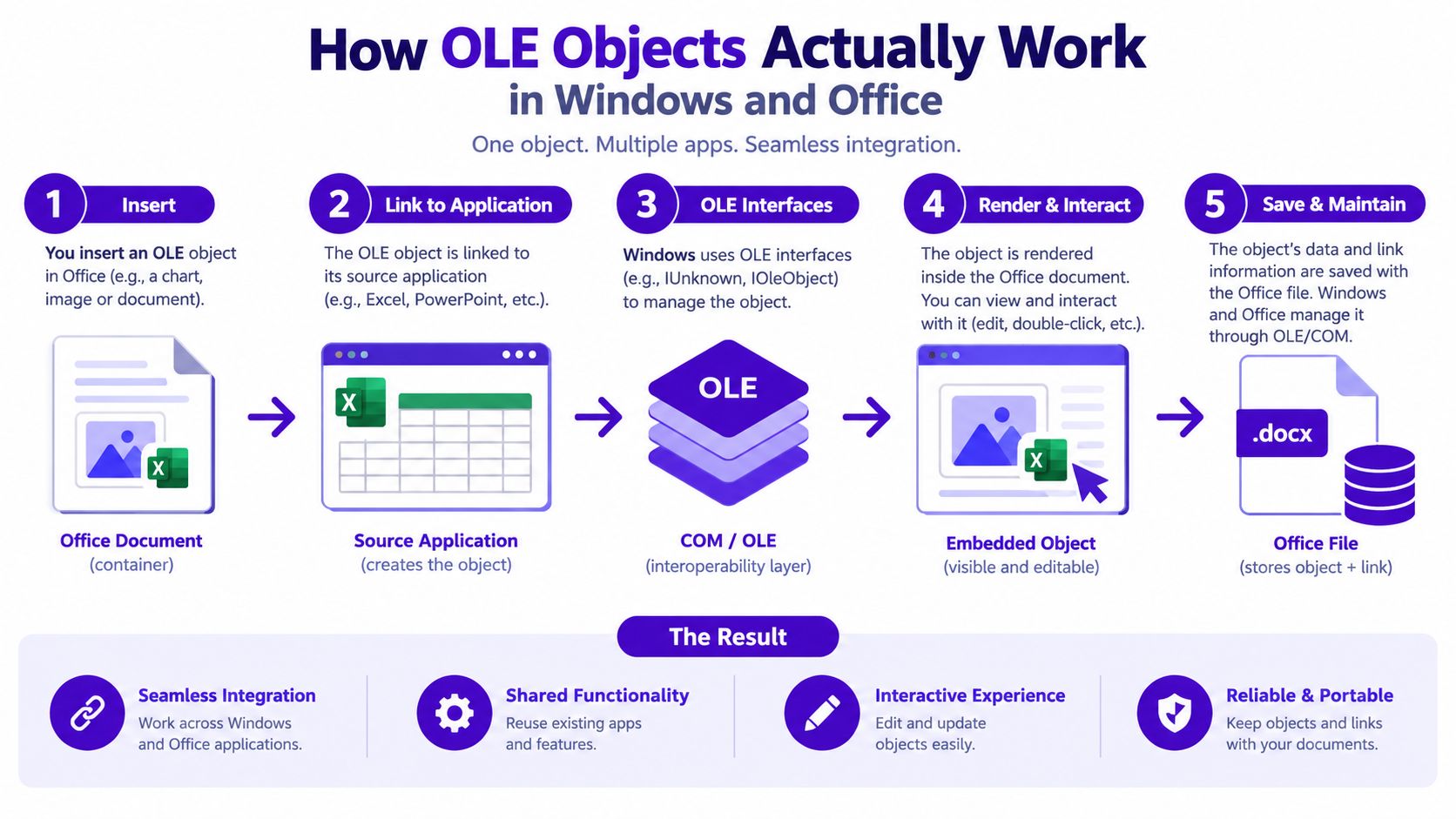
The container beneath the document
Older binary Office files, particularly legacy .doc documents, use structured storage. This compound container holds streams and storages instead of treating the document as one simple text file. Microsoft's Office binary file-format documentation describes the relevant OLE structures, which allows analysts to inspect object data without opening the file in Office (Office binary file-format documentation)).
An embedded object may sit in an ObjectPool stream beside its presentation data. A linked object may store information that directs Office to a source file. Removing the visible chart therefore may not remove every related artefact. A legacy document can retain an OLE Package object or another stream that requires separate inspection.
In-place activation is not a picture
Double-clicking an embedded Excel chart and editing it within Word is in-place activation. Word remains the host while Excel's editing functions become available in the document window. In another configuration, Word starts Excel separately and passes the object to that application for editing.
A pasted screenshot has no comparable editing relationship. It may look identical, yet it lacks the same COM identity, source relationship, and embedded object payload. For MSP triage, the visible page is only the surface. Analysts need to establish what the document contains, what component handles it, and whether activating it could affect the client's system or investigation.
Linked Versus Embedded and Why the Difference Matters
A client sends an annual report to a customer. The chart looks correct on the sender's screen, but the recipient opens an older version because the chart is linked to a shared workbook. In another report, the chart travels with the document, yet its underlying object contains more than the visible image. That difference affects portability, updates, and first-pass triage.
An embedded OLE object stores a copy of the source content inside the destination document. A linked OLE object stores a reference while the source remains elsewhere. Linked content can update from its source, whereas embedded content keeps its own copy (linking and embedding in Excel).
| Attribute | Embedded OLE Object | Linked OLE Object |
|---|---|---|
| Where the content lives | Inside the host document | In the original source location |
| What travels with the file | The object payload and its presentation data | A reference and possibly a cached preview |
| Main operational benefit | Portable, self-contained editing | Source updates can flow through to the document |
| Main dependency | The destination file must retain the object data | The source path, share, or location must remain available |
| MSP inspection focus | Object data, package type, embedded content | Link target, external reference, and access behaviour |
| Typical handling concern | Payload can be concealed inside the document | Opening the file can reach an external resource |
What Office does when the file opens
With an embedded chart, Word can display a stored preview and offer editing because the object data travels with the document. The file is easier to move between systems, but its container may hold more content than users or basic filters reveal.
With a linked chart, Word must resolve the reference. The source could be on a company file share or another permitted location. Office may prompt to update or access external content, and a user may approve that request without recognising which path is being accessed. For an MSP handling a suspicious attachment, preserve the original file and avoid activating either relationship during initial review.
The visible page is only one part of the evidence. In a binary .doc file, inspect ObjectPool and related streams. Look for an OLELink stream when checking external relationships, then examine package headers if the document appears to contain a file rather than a native Excel or Word object. Compare the document's stated purpose with the object types it contains.
Embedding carries the content to the recipient. Linking carries the relationship to another location.
Neither model is automatically malicious. A legitimate report may use either one. The exposure differs: embedded objects can conceal active or sensitive content within the document, while linked objects can create external dependencies and unexpected access paths. During client triage, record the object type, source relationship, prompts shown by Office, and whether the file could reach a permitted or unapproved location. Those details help determine whether the attachment is a routine business document or an incident that may require escalation and UK GDPR reporting consideration.
Microsoft's Office binary structures documentation supports examining these artefacts without opening the file in Office, which reduces unnecessary activation during first-pass analysis. Use that safer inspection approach alongside the document's visible content, not instead of it.
Why Attackers Still Love OLE Objects
Attackers value OLE because it gives a document a way to carry more than visible text. A file named Invoice_8732.doc, CV_2024.docm, or Purchase_Order_Q3.doc can contain an object that calls another Windows component, loads an external resource, or presents a user with a familiar-looking icon.
The first warning sign is often a package object. A document can display what appears to be a file attachment, while the underlying package contains a different file type. Abuse involving PackageIconRenderer has been associated with the presentation of .lnk files inside documents. The user sees an icon and a filename, but the action behind the icon may start a command chain.
Common abuse patterns
- Package abuse: An embedded package presents a shortcut or another executable-capable file as an ordinary document object.
- External template injection: A Word file references a remote DOTM template, allowing additional content or macros to be retrieved when Word resolves the relationship.
- Equation Editor abuse: Attackers have used embedded Equation Editor objects as part of chains involving macro stubs or other malicious content.
- COM activation: Office asks Windows to activate the registered component associated with the object, creating a path that basic file-signature checks may not understand.
The preview experience deserves careful attention. Depending on the Office version, file type, security settings, and preview handler, rendering or resolving document content can cause components to be inspected before a user deliberately edits the object. That's why gateways and endpoint controls should examine the document structure, not just wait for a macro prompt.
For a wider explanation of the operational risks associated with damaged or suspicious files, MSP teams can use this guide to the dangers of corrupted email attachments as a supporting client resource. It reinforces a useful message: a document that fails to open cleanly, displays an unexpected icon, or prompts for unusual actions shouldn't be treated as a routine business file.

What the analyst should assume
Don't assume that disabling VBA macros removes all document risk. Legacy .doc files parse OLE natively, and a malicious object may rely on COM activation or package behaviour rather than a conventional macro. The correct question is not only, “Does this file contain VBA?” It is also, “Which objects does it contain, what do they reference, and what would Office try to activate?”
A staged intrusion may use the document as the first delivery mechanism for a loader, remote access tool, or follow-on payload. The exact malware family can vary, but the investigative pattern stays consistent: suspicious attachment, object activation, unexpected child process, external connection, and credential or data exposure. For a concise explanation of staging behaviour, see this MSP cybersecurity stager explained.
Detecting and Containing Malicious OLE Objects
An effective MSP workflow starts before the attachment reaches the client mailbox. Email controls should quarantine suspicious legacy and macro-capable formats for inspection, including .doc, .docm, .dot, .dotm, .xls, .xlm, .xlsb, .ppt, .pptm, and .rtf. Microsoft 365 Safe Attachments can then detonate samples in a controlled environment, with policies tuned to inspect Office documents and their embedded objects.
A practical triage path
- Gateway review: Preserve the original message, attachment, sender information, and message headers. Don't allow a clean-looking preview to replace analysis of the original file.
- Sandbox analysis: Submit the sample to a controlled detonation service such as ANY.RUN or Hybrid Analysis before delivery, subject to your client's data-handling policy.
- Static parsing: Use
olevbato inspect macro-related content and OLE relationships, and useexiftoolto review metadata. These tools won't answer every question, but they can expose suspicious names, embedded streams, authoring anomalies, and object references without opening the file in Word. - Reputation checks: Calculate a file hash and check it against VirusTotal and MalwareBazaar where policy permits. A clean result isn't proof of safety, so combine reputation with structural and behavioural findings.
- Endpoint correlation: Use Microsoft Defender for Endpoint telemetry to identify Office processes launching unusual COM objects, child processes, or network activity.
Controls such as AMSI integration with Office can improve visibility into script and macro activity. Endpoint policy should also use Microsoft's available attack-surface-reduction capabilities and prevent Office applications from creating executable content or spawning unnecessary child processes. The precise policy mix needs testing against each client's legitimate workflows.
| Tool or Layer | What It Detects | Deployment Effort |
|---|---|---|
| Email gateway | Suspicious attachment types and message patterns | Low to moderate |
| Microsoft 365 Safe Attachments | Behaviour during controlled detonation | Moderate |
olevba and exiftool |
Embedded macros, metadata, and document artefacts | Low for analyst use |
| ANY.RUN or Hybrid Analysis | Runtime behaviour and external activity | Moderate, subject to data policy |
| VirusTotal and MalwareBazaar | Known file and hash associations | Low, with privacy controls |
| Defender for Endpoint | Process, COM, and endpoint activity | Moderate to high |
| Group Policy and Office policy | Activation, preview, and Protected View restrictions | Moderate |
For teams building a broader prevention process, this practical resource on malware detection before operational disruption offers useful context for layering gateway, endpoint, and investigation controls. The operating principle is simple: parse first, detonate safely, then decide whether to release, block, or escalate.
Flagged samples should go to the SOC quickly, with a defined escalation target of within 15 minutes only if that target is an internally chosen service level, not a universal regulatory requirement. Keep the original sample isolated, preserve hashes and logs, and avoid opening it on an analyst's everyday workstation. Teams comparing document monitoring with wider managed services can also review this GoSafe Dark Web monitoring MDR guide.
What Happens After a Successful OLE-Based Attack
An OLE-driven incident becomes an identity, endpoint, and data-protection problem as soon as the document executes something unexpected. The first response should contain the device through Microsoft Defender for Endpoint, preserve evidence, and determine whether the user's Microsoft 365 session or files were accessed.
Containment normally includes isolating the endpoint, resetting or revoking the affected user's Microsoft 365 token, and reviewing unified audit logs for sign-in and file activity before the event. The exact look-back period should follow the incident timeline and available evidence. Don't wipe or rebuild the machine before the team has captured the information needed to understand entry, execution, persistence, and possible access to other systems.
Regulatory response needs an owner
Under UK GDPR, an organisation must report a notifiable personal data breach to the ICO without undue delay and, where feasible, within 72 hours of becoming aware of it. If the notification is late, the organisation must explain the delay (ICO guidance on the 72-hour breach window).
The ICO says a notification should include the organisation's name and contact details, the date and time of the breach or an estimate, the date and time it was detected, basic information about the breach type, and basic information about the personal data concerned (ICO breach notification information).
Not every security event is automatically an ICO-reportable personal data breach. If the breach isn't likely to create a risk to individuals' rights and freedoms, it doesn't need to be reported to the ICO, which makes documented risk assessment a key MSP deliverable (UK breach risk assessment guidance).

Organisations covered by the Network and Information Systems rules also have to notify incidents without undue delay and no later than 72 hours after becoming aware of them, according to the ICO's NIS incident-reporting guidance (ICO NIS incident reporting). The relevant regulator and sector arrangements must be confirmed for the client.
An MSP's role should be explicit in the contract. It may include evidence preservation, communications support, insurer notification, ransom-negotiation triage, and coordination with the client's legal team or the NCSC during an active intrusion. These services can sit alongside managed endpoint protection, awareness training, and credential exposure monitoring as retained support, rather than appearing for the first time during a crisis.
Turning OLE Risk Into a Recurring Service for Clients
OLE risk gives service providers a practical way to move from one-off attachment cleanup to an ongoing document-security service. The customer already understands the business problem: staff receive Word, Excel, and PowerPoint files from suppliers, customers, recruiters, and unknown senders. Your role is to turn that exposure into a defined service with clear outputs.
A monthly retainer can combine gateway tuning, Office policy reviews, AMSI and Defender telemetry checks, legacy .doc parsing, and suspicious-document analysis. Add user phishing simulations and a documented escalation path, then report the work in language a business owner can understand.
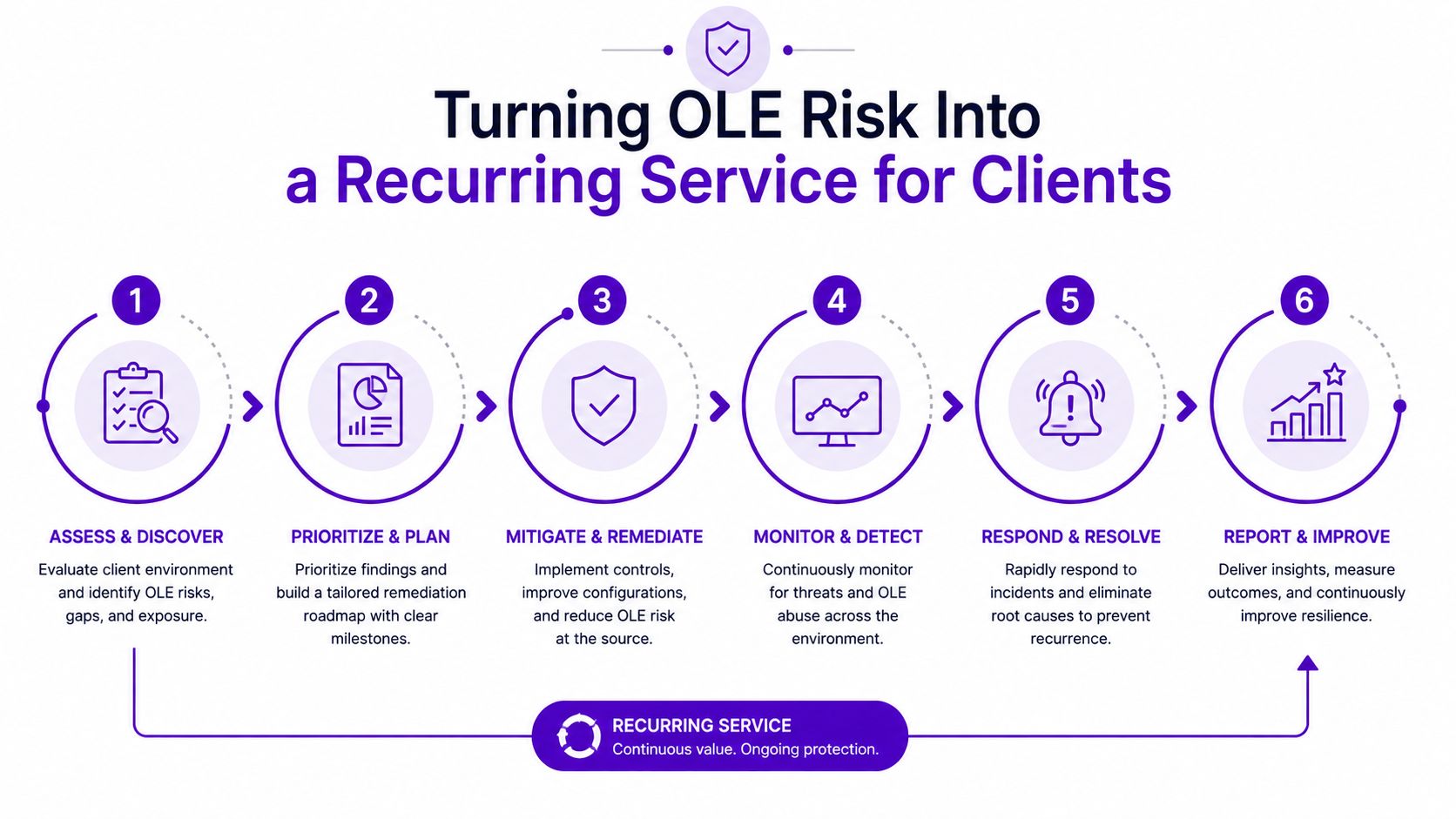
Build the offer around visible deliverables
- Gateway review: Record blocked or quarantined document categories and adjust rules when legitimate workflows are affected.
- Document triage: Analyse suspicious legacy Office files and provide a short disposition, such as released, blocked, or escalated.
- Endpoint hardening: Review Protected View, Office child-process restrictions, COM activation controls, and preview behaviour.
- Client reporting: Provide a monthly summary of findings, outstanding risks, policy changes, and recommended actions.
- Incident readiness: Maintain an escalation route that supports evidence preservation and the UK GDPR response clock when a personal data breach may have occurred.
- Credential monitoring: Add dark web monitoring for compromised email addresses, exposed passwords, breached domains, and credentials stolen during an attachment-led incident.
That final service layer is especially useful for MSPs, telecom providers, hosting companies, VoIP providers, web agencies, and technology resellers. A document attack may begin with an attachment, but the continuing customer need includes identity protection, user education, response planning, and understandable reporting.
Businesses don't want another opaque dashboard. They want clear alerts, an explanation of what happened, and someone who can help them act. Providers can become a security reseller by packaging these capabilities under their own brand, adding white-label security services to existing IT support, cloud, connectivity, hosting, or web-service contracts.
GoSafe Dark Web monitoring helps service providers detect compromised email addresses, exposed passwords, and breached domains through continuous scanning and clear business-friendly alerts. Visit GoSafe Dark Web monitoring to explore how you can add white-label monitoring to your client services and create a practical recurring security offer.